Last updated: 2026-03-27
Integration guide for Wiz#
This document outlines the steps required to integrate the mnemonic MDR for Wiz service with the Wiz Cloud Security Platform.
Detailed instructions are provided to guide you through the integration process. However, as Wiz and related cloud environments are continuously evolving, some steps or screenshots in this document may differ slightly from the current interface or available options.
mnemonic strives to keep this documentation up to date. However, changes in the Wiz administrative console or functionality may occasionally result in temporary discrepancies. If you encounter any significant issues or inaccuracies that prevent you from completing the integration, please contact us so we can update the documentation promptly.
Setup Single Sign-On (SSO)#
To enable mnemonic’s security analysts to access the Wiz Portal, Single Sign-On (SSO) must be configured within the Wiz platform.
mnemonic uses SSO in combination with access packages to differentiate access levels between Tier 1 and Tier 2 analysts:
Tier 1 Analysts: Have read-only access to the Wiz Portal. They can view data and monitor threats, detections, and issues without making configuration changes.
Tier 2 Analysts: Have extended permissions, allowing them to perform advanced tasks such as tuning configurations and creating or updating detection rules.
Allow mnemonic’s Domain#
mnemonic analysts authenticate to the Wiz Portal exclusively through mnemonic’s SSO application. To enable this, mnemonic’s domain must be whitelisted in Wiz.
Navigation Steps#
Log in to the Wiz Portal as an administrator.
Click Settings in the bottom-left corner.
Navigate to Access Management → SSO & Login Security.
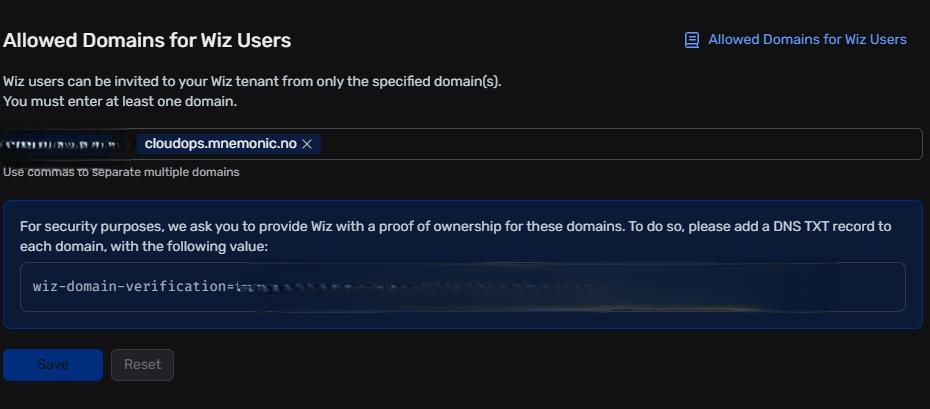
Under Allowed Domains for Wiz Users, add the domain provided in the Argus implementation case.
Click Save to apply the changes.
In the same section, locate the string labeled
wiz-domain-verification=xxxx.Copy this string and save it for later use.
You should now see a configuration similar to the example below:
Configure the SSO Integration#
To connect mnemonic’s SSO application with the Wiz Portal, complete the configuration within Wiz.
Note: If you are already in the SSO & Login Security section, you can skip the first three steps below.
Navigation Steps#
Log in to the Wiz Portal as an administrator.
Click Settings in the bottom-left corner.
Navigate to Access Management → SSO & Login Security.
In the SSO section, click + Add Identity Provider.
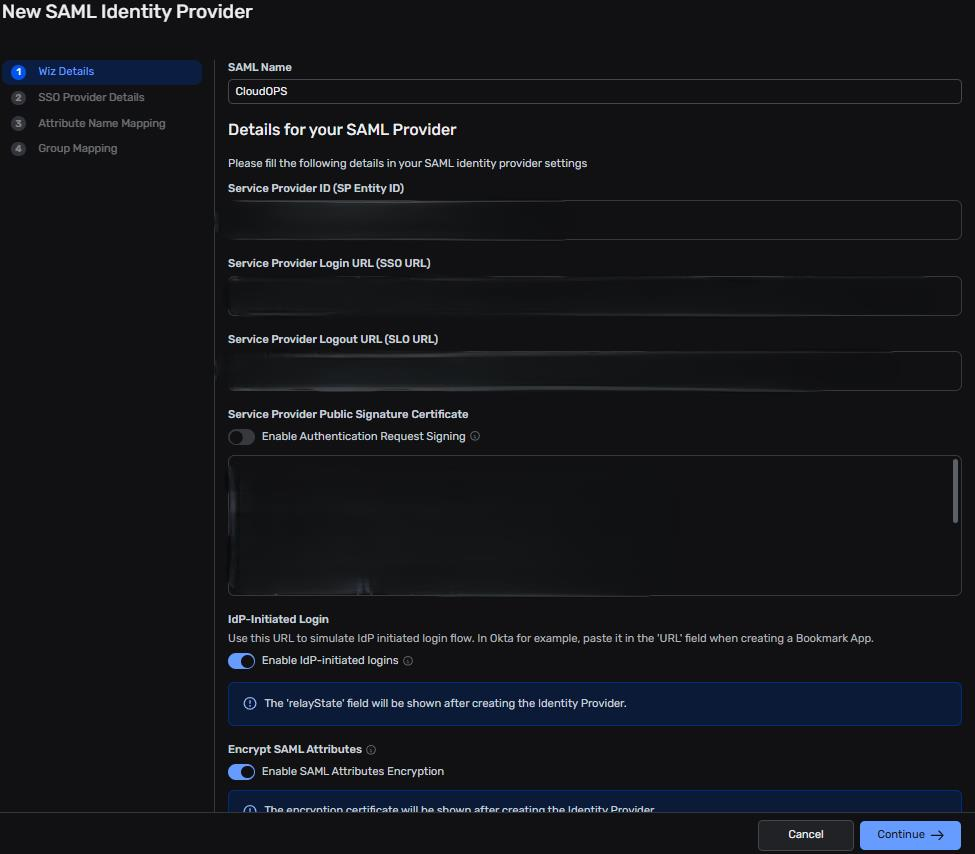
Complete the configuration using the tables below.
Wiz Details#
Key |
Value |
|---|---|
SAML Name |
CloudOPS |
Service Provider Public Signature Certificate (Authentication Request Signing) |
Do not enable |
Simulated IdP-Initiated Login URL (IdP-initiated logins) |
Enable |
Encrypt SAML Attributes (SAML Attributes Encryption) |
Enable |
Values to share with mnemonic |
Service Provider ID (SP Entity ID) |
If everything appears correct, click Continue.
SSO Provider Details#
Key |
Value |
|---|---|
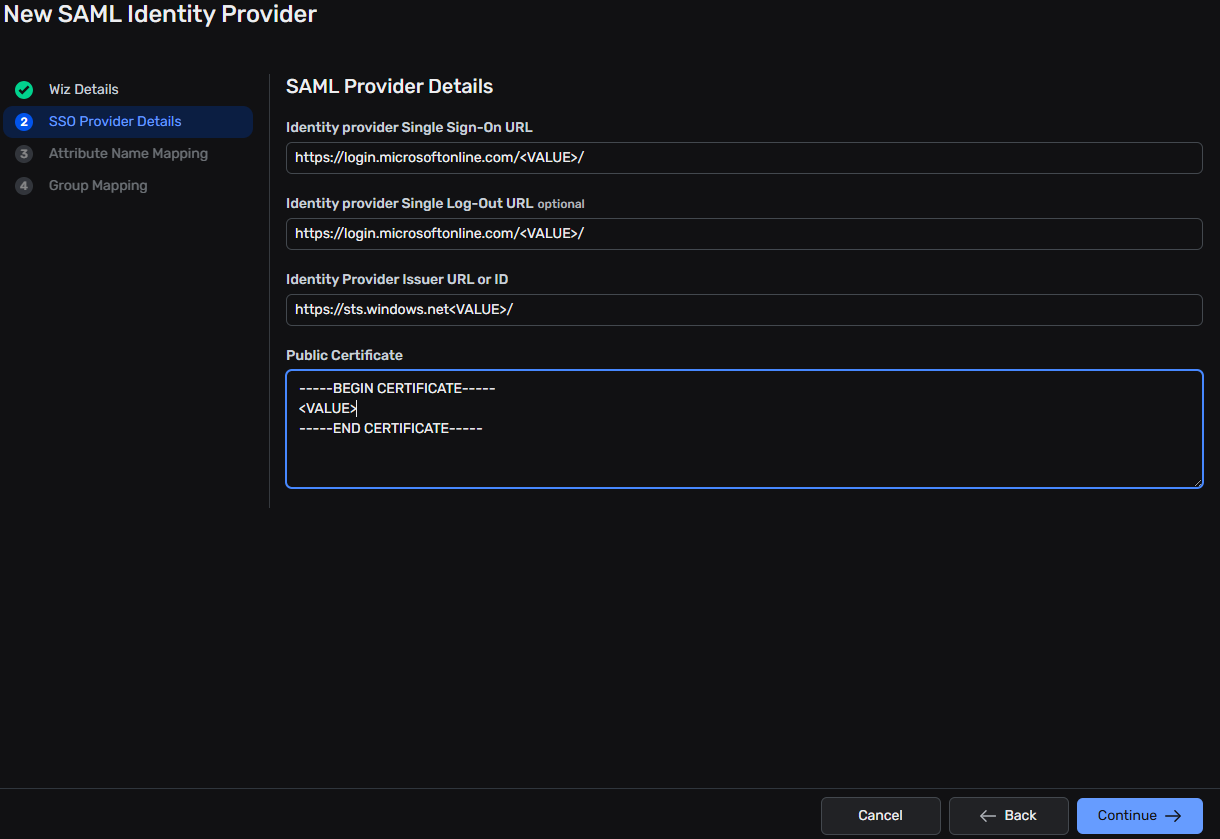
Identity Provider Single Sign-On URL |
Provided in the Argus implementation case |
Identity Provider Single Log-Out URL |
Provided in the Argus implementation case |
Identity Provider Issuer URL or ID |
Provided in the Argus implementation case |
Public Certificate |
Provided in the Argus implementation case |
If everything appears correct, click Continue.
Attribute Name Mapping#
Key |
Value |
|---|---|
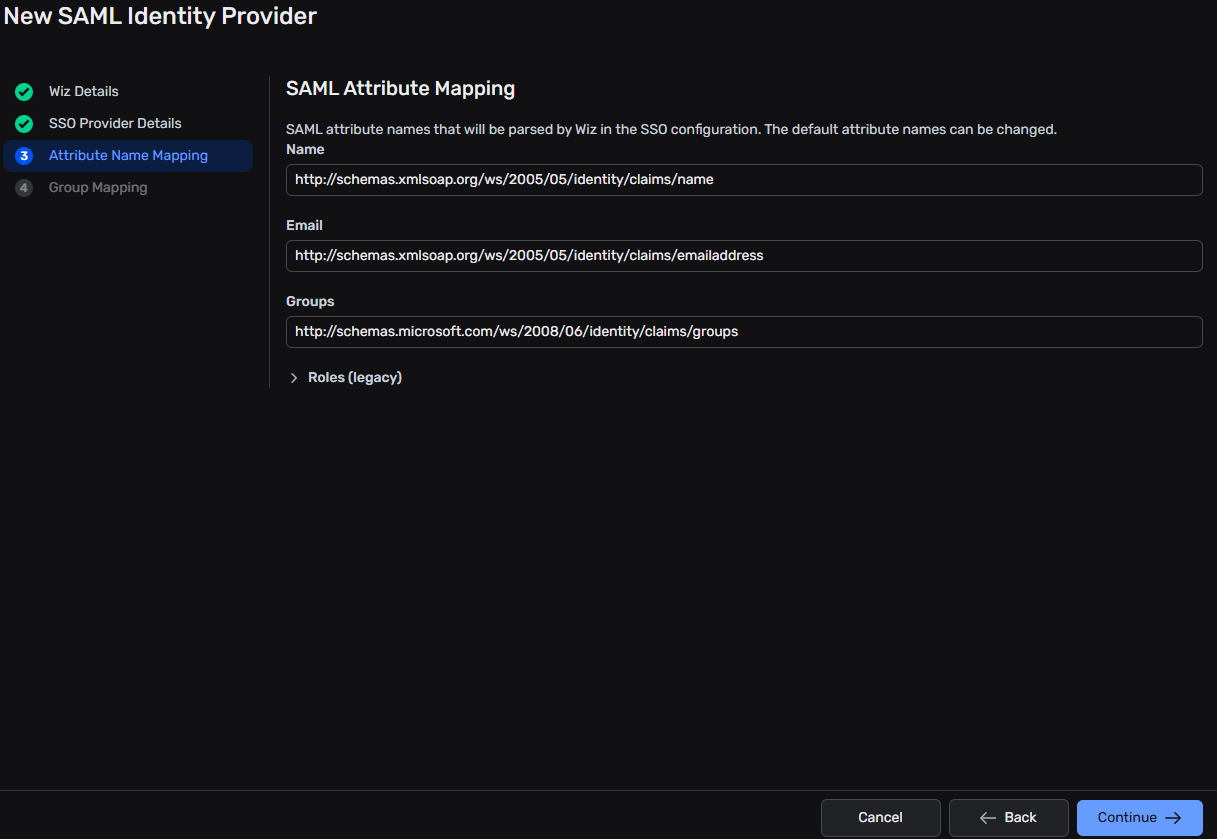
Name |
No change |
No change |
|
Groups |
http://schemas.microsoft.com/ws/2008/06/identity/claims/groups |
If everything appears correct, click Continue.
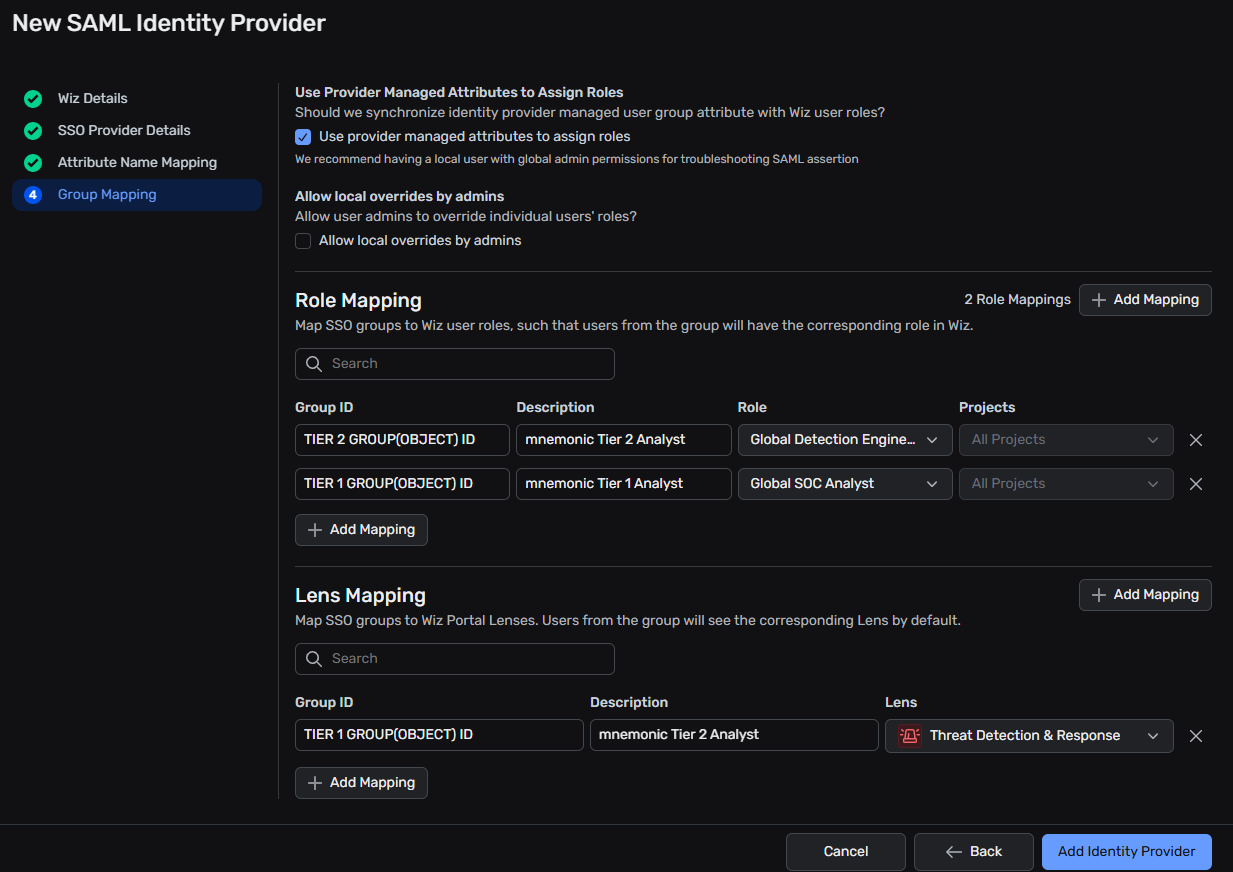
Group Mapping#
First, enable Use provider-managed attributes to assign roles.
Then configure the role mappings. Click + Add Mapping for each entry and use the values below. The (OBJECT) ID for Tier 1 and Tier 2 is given to you in the Argus Implementation Case.
⚠️ Important: Configure mappings in order — Tier 2 first, then Tier 1.
Mapping |
Configuration |
|---|---|
Tier 2 |
Group ID: TIER 2 GROUP (OBJECT) ID |
Tier 1 |
Group ID: TIER 1 GROUP (OBJECT) ID |
Lens Mapping |
Leave empty |
If everything appears correct, click Add Identity Provider to complete the setup.
Send Required Information to mnemonic#
After creating the Identity Provider, additional values will be generated. These must be shared with mnemonic.
Navigation Steps#
Click Edit next to the newly created Identity Provider.
Navigate to the Wiz Details section.
Collect the following:
IdP-Initiated Login setting
Encrypt SAML Attributes setting
In your Argus implementation case, provide:
Service Provider ID (SP Entity ID)
Service Provider Login URL (SSO URL)
Service Provider Logout URL (SLO URL)
IdP-Initiated Login URL
Encrypt SAML Attributes certificate
wiz-domain-verificationstring
Whitelisted IPs#
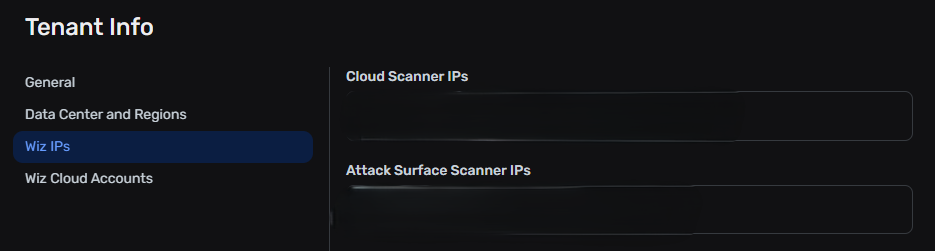
After logging in to the Wiz platform, you can retrieve the list of IP addresses that must be whitelisted.
Navigation Steps#
Click your user icon in the top-right corner.
Select Tenant Info from the dropdown.
In the left-hand menu, click Wiz IPs.
Locate the Cloud Scanner IPs section.
Copy the list and share it in the Argus implementation case.
Set Up the Wiz Environment#
To configure the Wiz environment, follow the official Wiz guide:
https://docs.wiz.io/docs/mnemonic-integration